 Sheaf
Sheaf
Connect Claude to Sheaf
Add Sheaf to Claude as a connector, sign in once, then ask Claude about your cases or have it work on them.
claude.ai, the Claude app and Cowork
The quickest way: open Add Sheaf to Claude. It opens the Add custom connector dialog with the name and address filled in, so you start at step 4 below. Claude warns that an outside link suggested it.
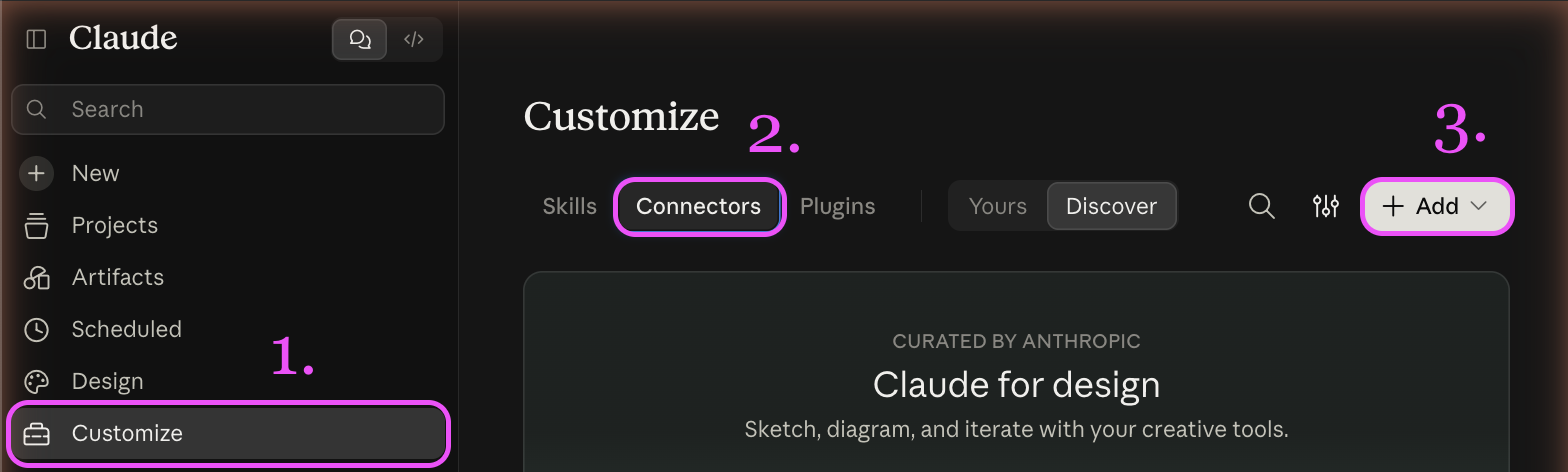
- Click Customize.
- Click Connectors.
- Click + Add, then Add custom connector.
- Name it
Sheaf, enterhttps://sheaf.us/api/mcp, and click Continue, then Add. - Click Connect, sign in to Sheaf if asked, and click Allow.
On a Team or Enterprise plan, an Owner adds it under Organization settings → Connectors, and each member clicks Connect.
Claude then acts as you, with your role, in your organization. The sign-in lasts 30 days from its last use. To end it, click Disconnect under Connected agents, in a case's Control Center.
Claude Code
claude mcp add --transport http sheaf https://sheaf.us/api/mcp
Then run /mcp in Claude Code, or claude mcp login sheaf in a terminal, and sign in the same way. Or use an API key:
claude mcp add --transport http sheaf https://sheaf.us/api/mcp --header "Authorization: Bearer sheaf_…"
Ask
For example: "Which of my cases changed today?" or "What loan amount does the Jane Doe refinance case state, and on which page?"
Claude can also change a case when you ask: "Mark the appraisal in the Jane Doe refinance case Priority."
Adding files
Attach files to the chat, or keep them in a Project, and ask: "Add these to the Jane Doe refinance case." Claude makes an upload link for the case and sends the files to it. When the case has a workflow, the files are read on arrival; otherwise they wait at the gate.
Claude sends them from its own code environment. If that can't reach Sheaf, Claude gives you the case's link instead, where you add the files with Files → Add. To let Claude send them itself:
- In Claude, open Settings → Capabilities.
- Turn on Cloud code execution and file creation and Allow network egress.
- Set Domain allowlist to All domains, or to Package managers only with
sheaf.usunder Additional allowed domains. - Start a new chat.
On a Team or Enterprise plan, an Owner sets this under Organization settings → Capabilities. An upload link works for 30 days, and stops when your sign-in is disconnected.
The tools
| Tool | What it does |
|---|---|
list_applications | Your cases: the ones changed last (sort: recent), or by name (q). |
lookup_application | One case: its files, run, filing decisions and approved documents. |
list_documents | A case's documents, each with the pages the changes below take. |
search_case_text | Searches a case's text, exactly (pattern) or ranked (q). Each hit gives its file, page and line. |
read_parsed_pages | The text of pages of one file. |
list_intel_briefs | A case's Intel briefs. |
get_intel_brief | One brief, with its citations. |
approve_document | Approves a document under a requirement. It never rejects one. |
file_pages | Files or archives pages the run left unassigned. |
tag_document | Tags a document Priority or Excluded, or clears its tag. |
create_upload_link | Makes a link that adds files to a case (see Adding files). |
Good to know
- Changes ask first. Claude asks before it uses a tool, until you choose Always allow for that tool. It can approve a document but never reject one.
- Recorded as Claude. Each change is in the case's ledger as "Agent via Claude · you" (see the ledger).
- Your organization only. Another organization's case is never found.
- Too big? An answer too big for one reply is refused, with what to ask for instead: fewer pages, a narrower search, or a
limit. - Sources. Every search hit and page carries its file and page number, so Claude can say where each figure comes from.