 Sheaf
Sheaf
Find your way around
The app drawer on the left of every page, with its four sections, your pinned and recent cases, New case, and your account.
Every page has the app drawer on its left.
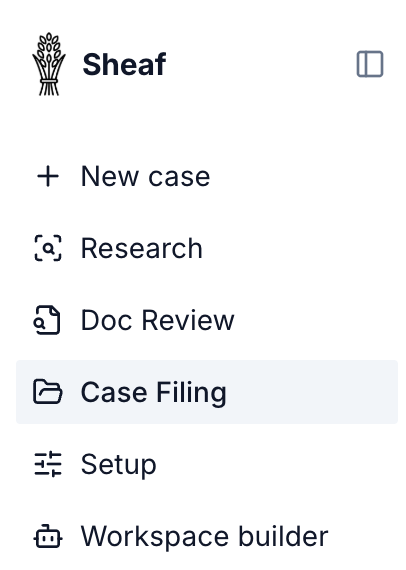
The four sections
| Section | What it is |
|---|---|
| Research | A case's workspace: questions answered with citations, Intel briefs, and documents open side by side. See the Research page. |
| Doc Review | One document at a time, page by page. See Doc Review. |
| Case Filing | The case's own pages: Intake, Triage, Documents and Register, with Workfile, Timeline and the activity ledger under ⋮. |
| Setup | Your organization's building blocks, as tabs: Applications, Classify, Extract, Intel and Workflows. |
The section you are in is highlighted. On a case's page, the other case sections open the same case. From a Setup page, they open the case you opened last.
On the Research page, its windows — Intel overview, Documents and Briefs — open from the dock at the left of the page.
Cases
- New case: name the case and pick its expected document list. It opens on the new case's Research page.
- Pinned: the cases you pinned. Hover over a case to pin or unpin it.
- Recents: the cases you opened most recently, newest first, up to ten. The arrow beside Recents opens every application.
A case in either list opens on its Research page.
The case name
On a case's pages (Research, Doc Review and Case Filing) its name sits at the top left. Click it for the case's details: its expected document list and version, program and closing target, which you can set there, and a link back to every application. Click anywhere else, or press Esc, to close it.
Your account
Your name and organization sit at the foot of the drawer. Click them to add your email or change your password, open Settings, or sign out.
Opening and closing it
The button at the top folds the drawer to a rail of icons and opens it again. ⌘B, or Ctrl+B, does the same. The drawer stays as you left it from page to page.
Research and Doc Review are busy pages, so the drawer starts hidden there, leaving the whole screen to the page. The drawer icon at the top left opens it beside the page: click it, or rest the pointer on it for a moment.
On a phone, the drawer opens as a sheet from its icon at the top of the page.